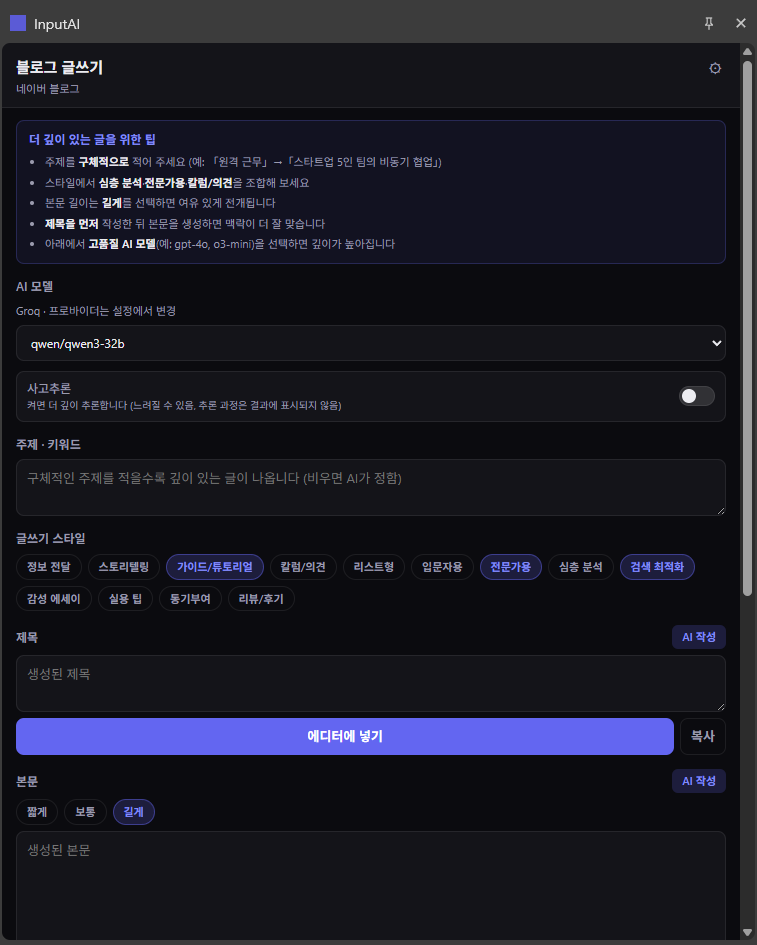

Text · textarea · editors
- Voice input — dictate with your microphone
- Translate — convert to your configured language
- Spell check — fix spacing and typos
- Improve wording — polish in 12 styles
- Prompt improve — optimize for site context
- Postcode search — Korean addresses (local, Korean browser)
- Numbers to words — converts numbers to words in your browser language (e.g. 1,234,567 → one million… / 일백이십삼만…). Local, no AI.
- Calculator — evaluate expressions like an engineering calculator. Type
=1+2+3and press Enter, or click Calculate. Supports + − × ÷ % ^ parentheses, sin/cos/tan, log, ln, sqrt, pi, e, factorial. Local; Enter does not submit forms. - Unit conversion — type
=1km, mand press Enter →1000m. Format:=number fromUnit, toUnit. Length, mass, volume, area, temperature, time. Local processing. - Currency conversion — type
=1 USD, KRWand press Enter → e.g.1530 KRW. Supports 200+ fiat currencies and crypto (BTC, ETH, …) via exchange API. Rates cached for 6 hours. -
v1.0.4
Relative date — type
=+1day,=+1hour, or=-2weekand press Enter or Calculate →YYYY-MM-DD(hour/min/sec include time). Units:year·month·week·day·hour·min·sec(and aliases). Does not conflict with math or unit conversion. - v1.0.4 Undo / Redo — per-field history (typing, IME, InputAI changes). Ctrl+Z / Ctrl+Y (macOS: Cmd+Z / Cmd+Shift+Z) only affect the focused field; blocks Chrome’s cross-field undo spill.